How-to guide
Log & view catches
A catch records what you caught, when, and where — with an optional photo. Catches attach to the session you are in, so each trip keeps its own list.
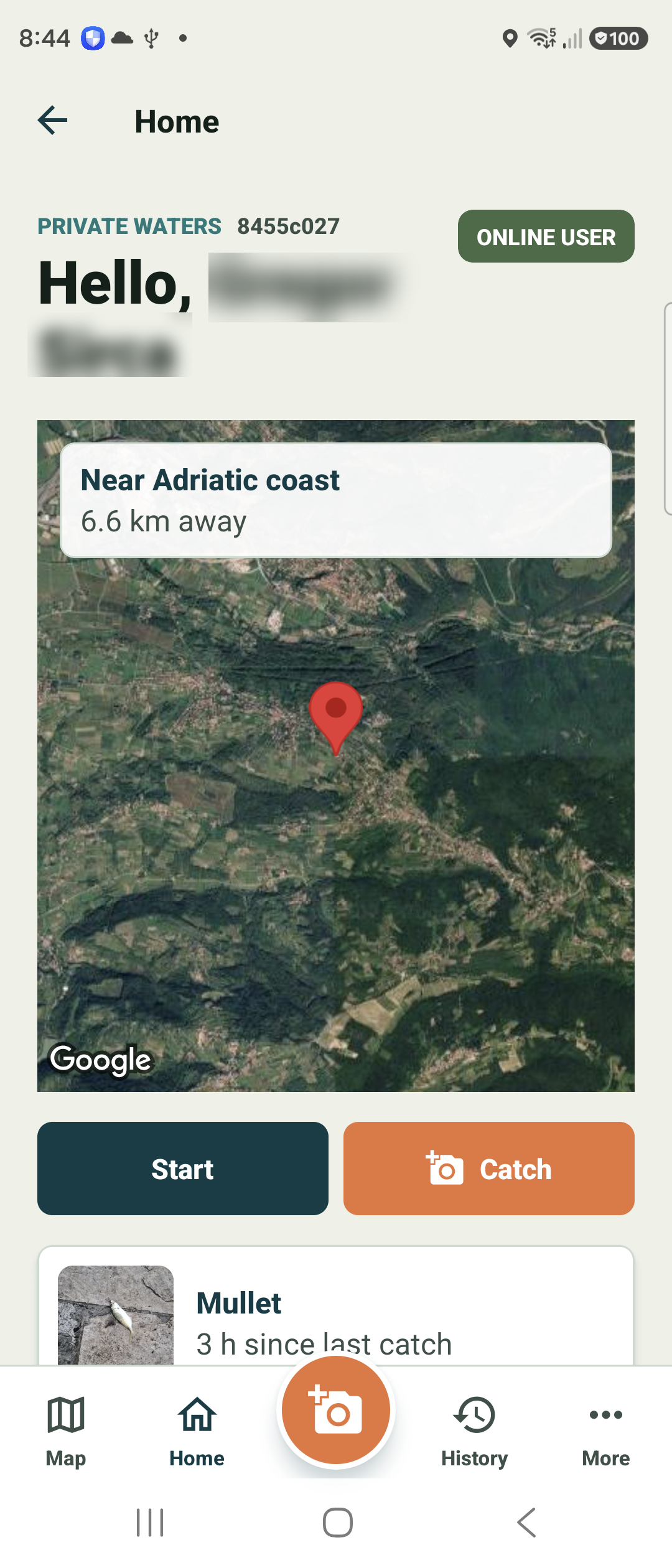
Tap the orange Catch button
From Home, tap Catch (or the orange camera in the centre of the bottom bar). It opens the camera so you can photograph your catch right away. During a running session, the big Take photo button at the top of the screen does the same thing — no scrolling.
You can add a photo or skip it, then record details such as size, weight, gear, and notes. Logging works offline — no signal needed.
Open the session detail
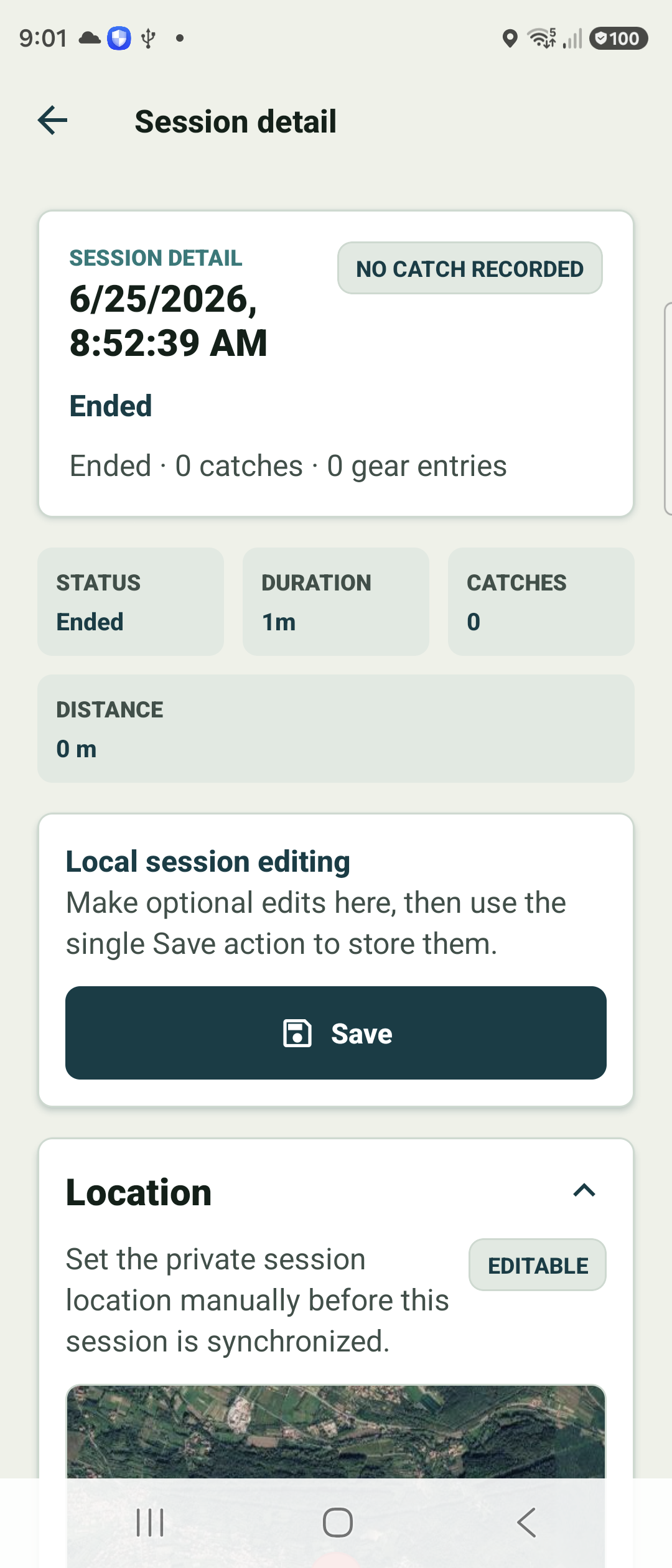
Every session has a detail screen showing its date, status, duration, distance, and catch count.
Use the collapsible Session data, Optional data, and Environment sections to review or edit what was captured. Edits are gathered and stored with a single Save.
Review your catches
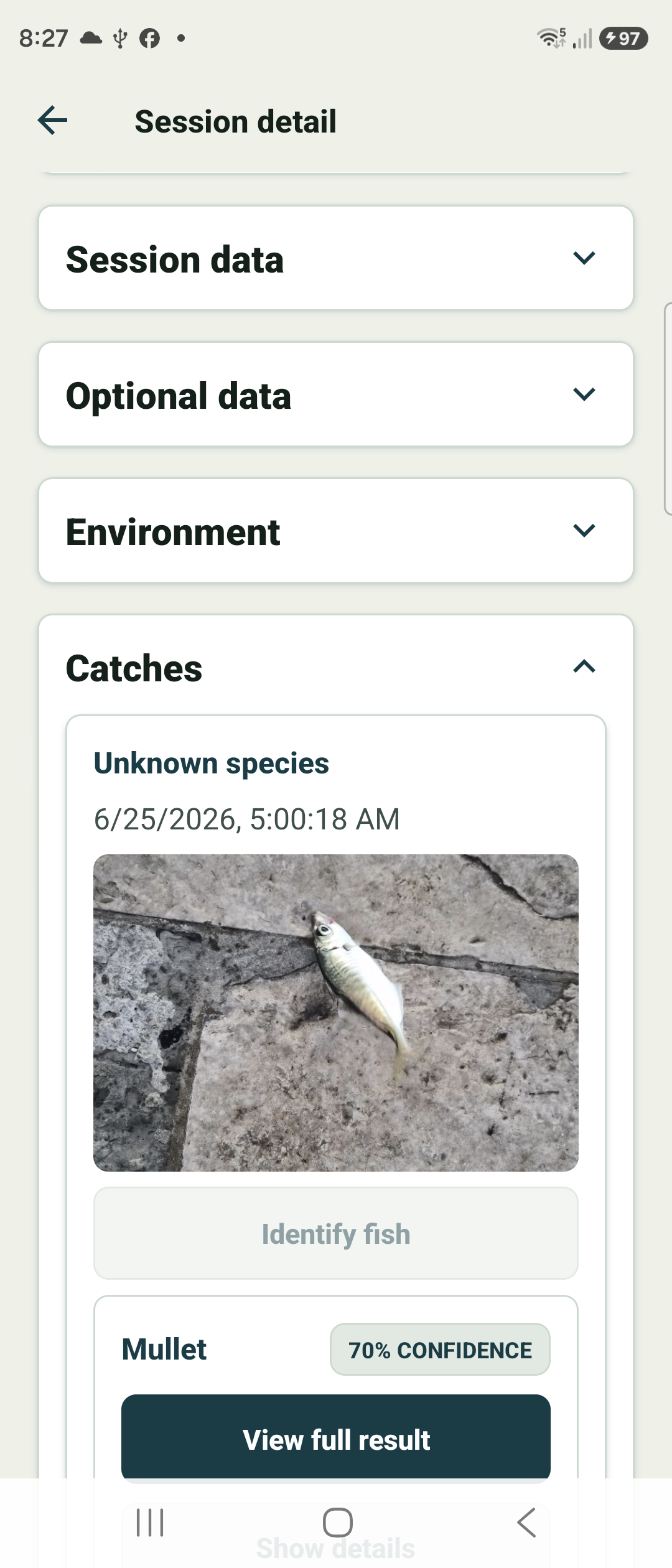
Open the Catches section to see each catch with its photo and time. A new catch starts as “Unknown species” until you identify it.
From here you can tap Identify fish on a catch, or open View full result on one that has already been identified.
Next guide covers AI identification step by step.